Panel & Google Drive Setup Guide
This guide explains how to:
- Link your panel to the app
- Create a Google Drive API key
- Make your Google Drive folder public (shareable)
1. Link Your Panel
Follow these steps to connect your panel (e.g. Toxic Players) to the BeamMP Mods Sync Tool.
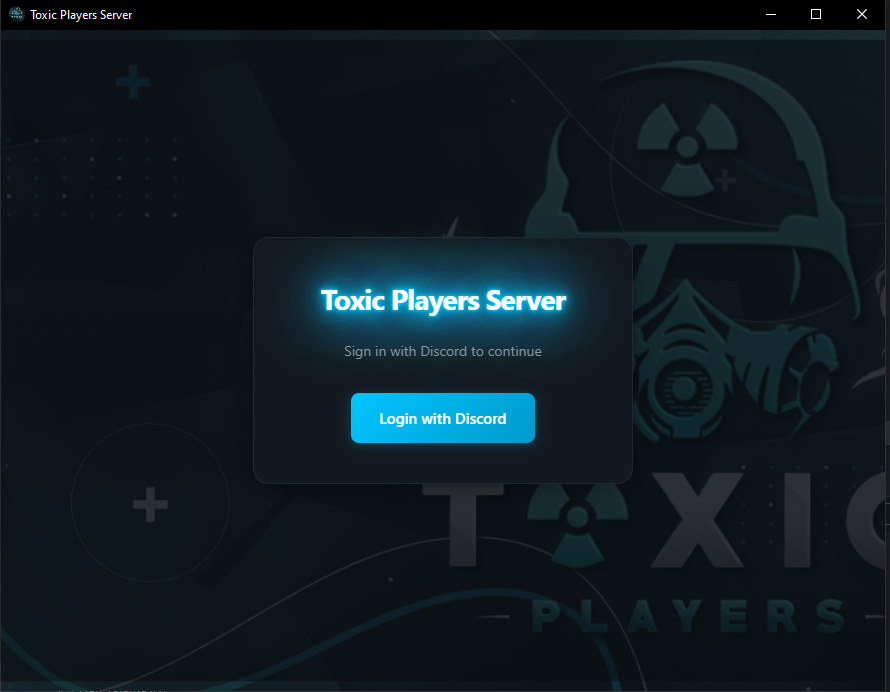
Step 1: Open the app and log in
Open the BeamMP Mods Sync Tool and log in with Discord.
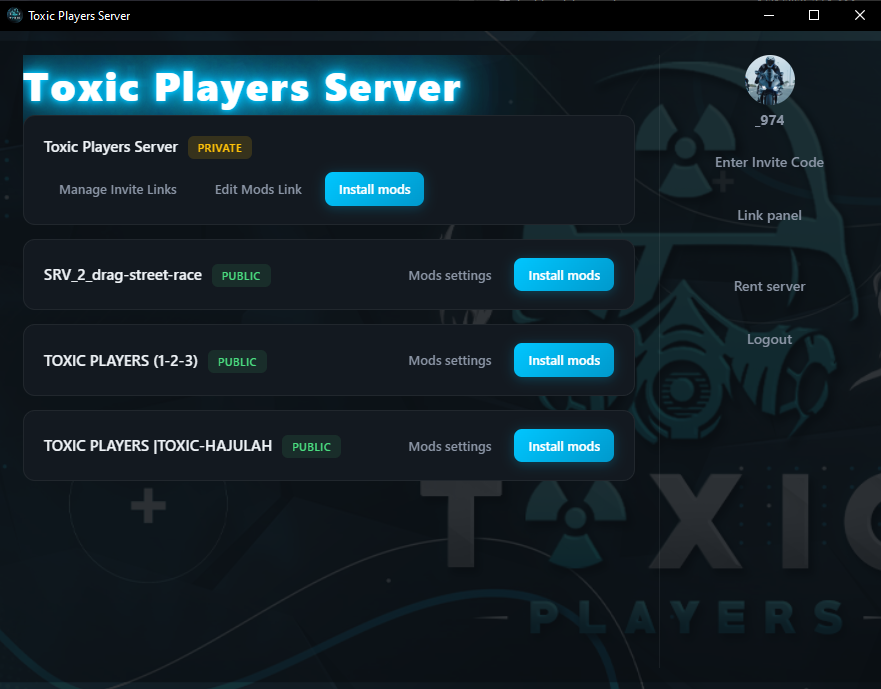
Step 2: Click Link panel
In the main interface, click the Link panel button.
Step 3: Get your panel API key
- Log in to your panel
- Go to Account → API
- Under Create New, enter a description (e.g. "BeamMP Mods Sync")
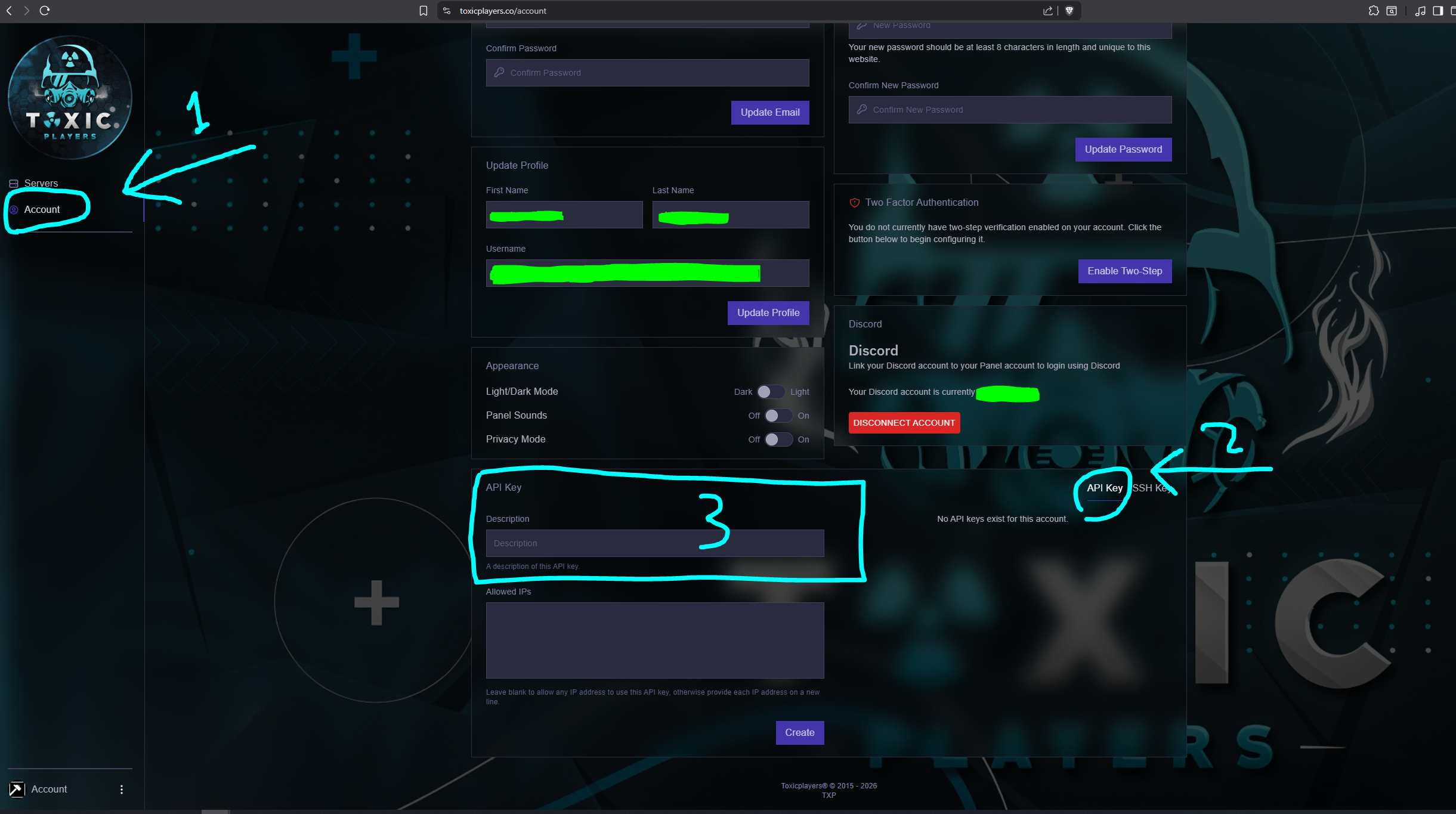
- Click Create
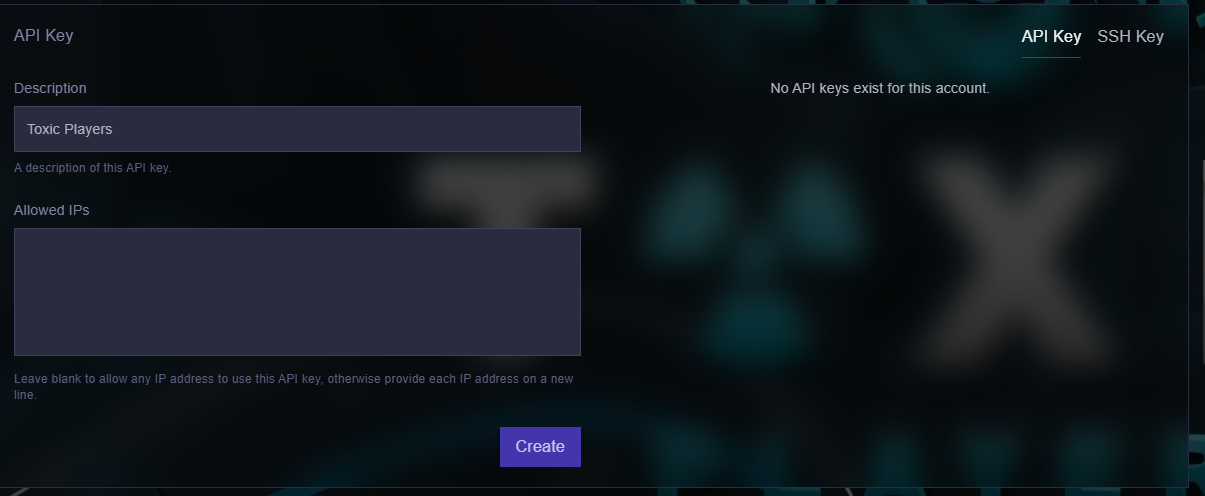
- Copy the generated API key (starts with
ptlc_)
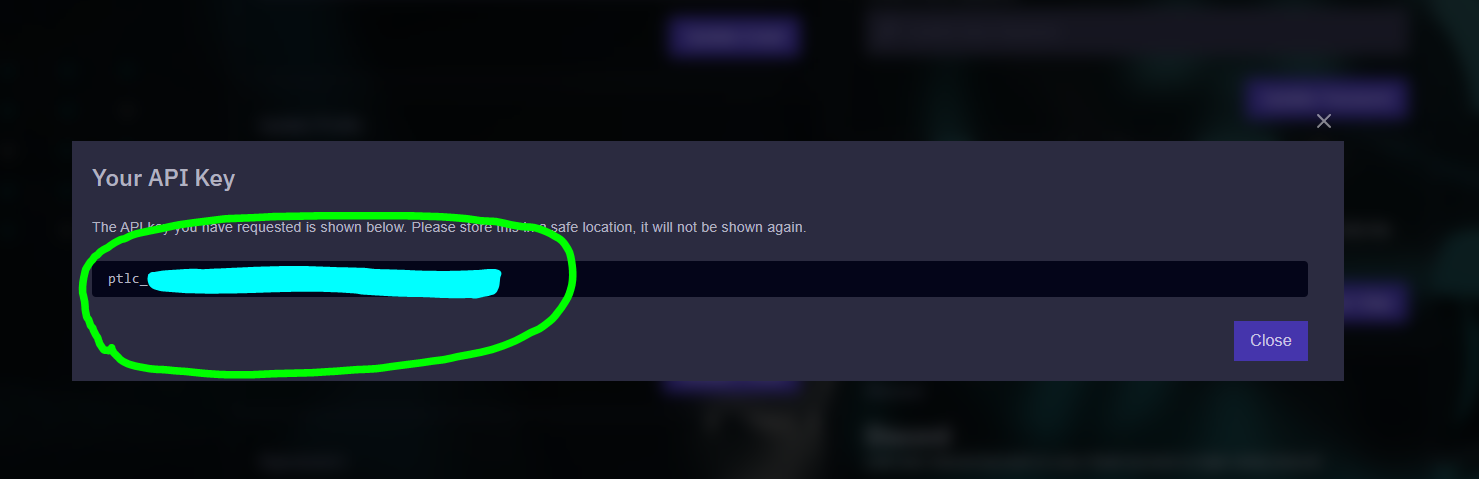
Do not share your API key with anyone.
Step 4: Enter panel URL and API key
Enter your panel URL (e.g. https://toxicplayers.co) and API key in the app, then click Save.
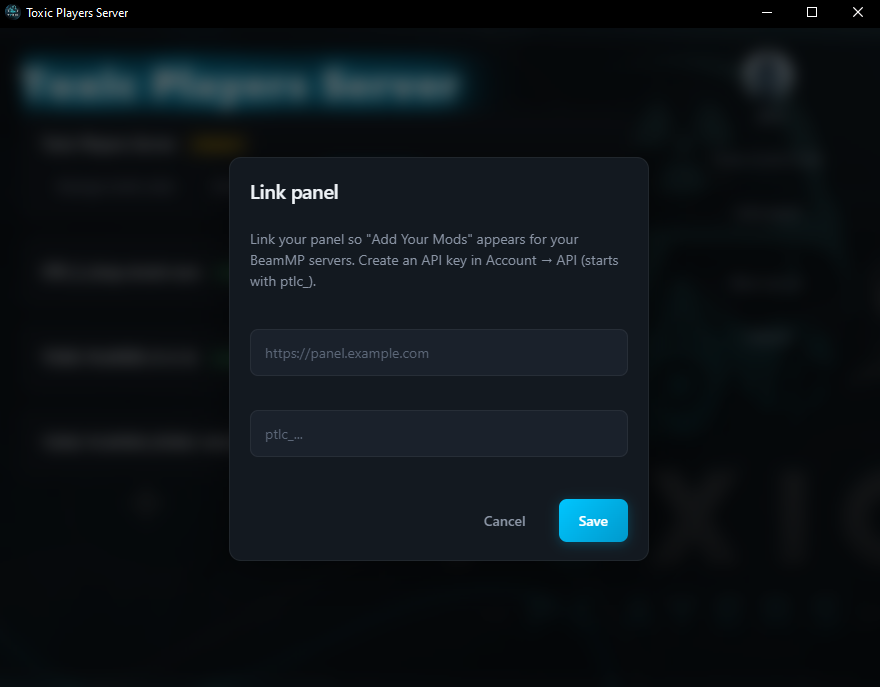
Step 5: Verify the connection
After linking successfully, Add Your Mods and Manage Invite Links will appear for your BeamMP servers.
2. Create Google Drive API Key
To use a Google Drive folder for mods, you need a Google Drive API key.
Step 1: Open Google Cloud Console
Go to Google Cloud Console and sign in with your Google account.
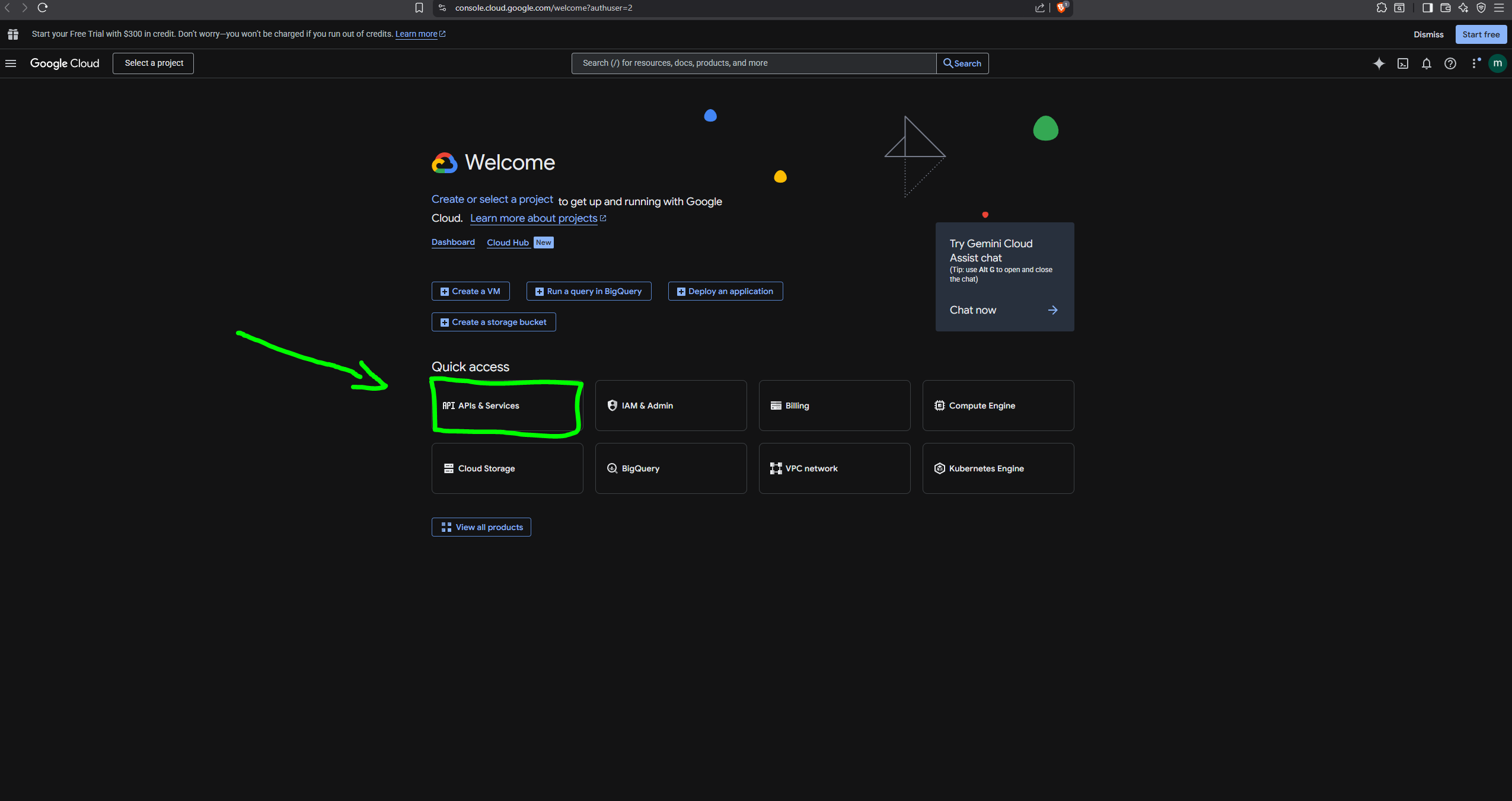
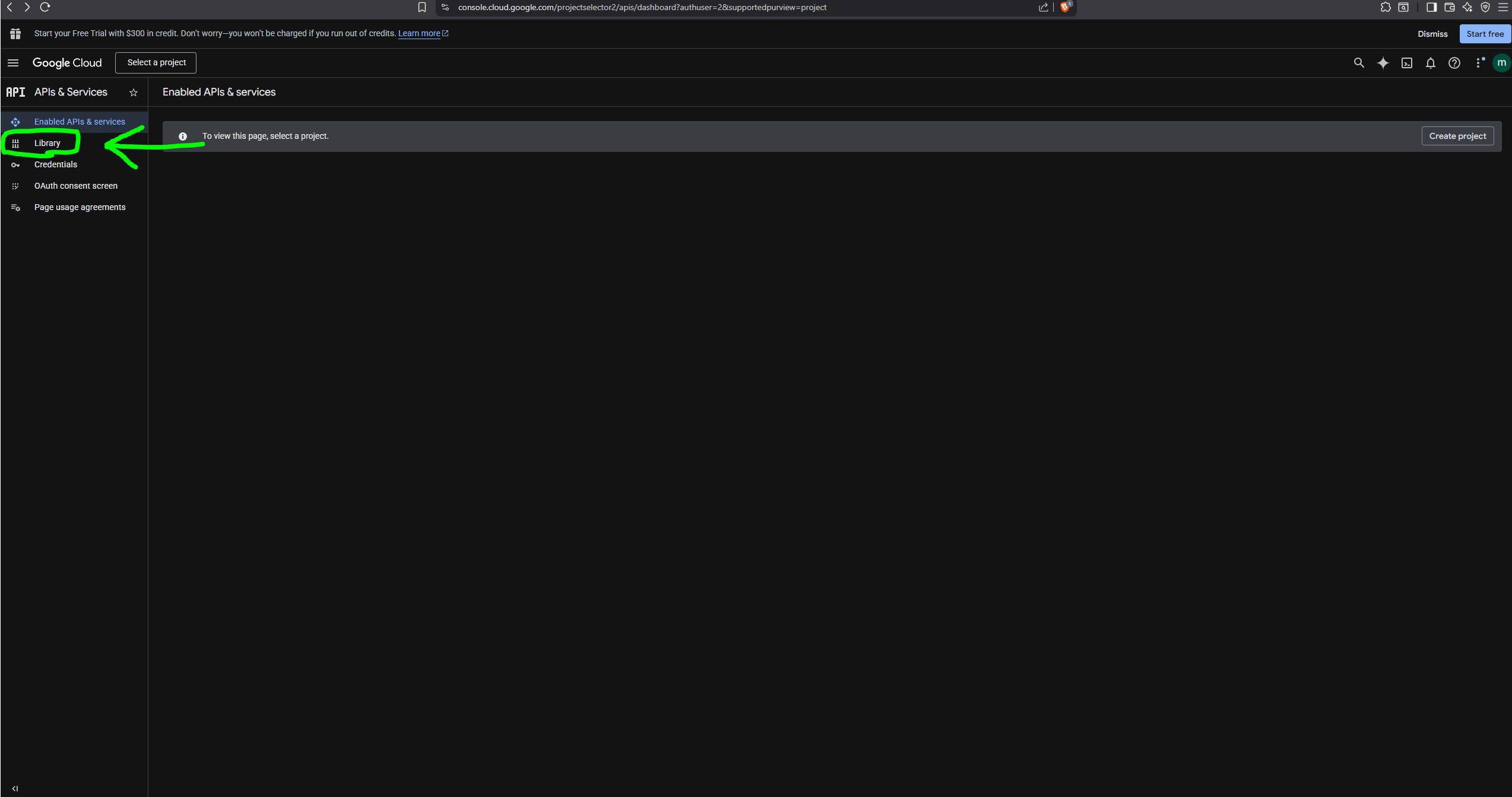
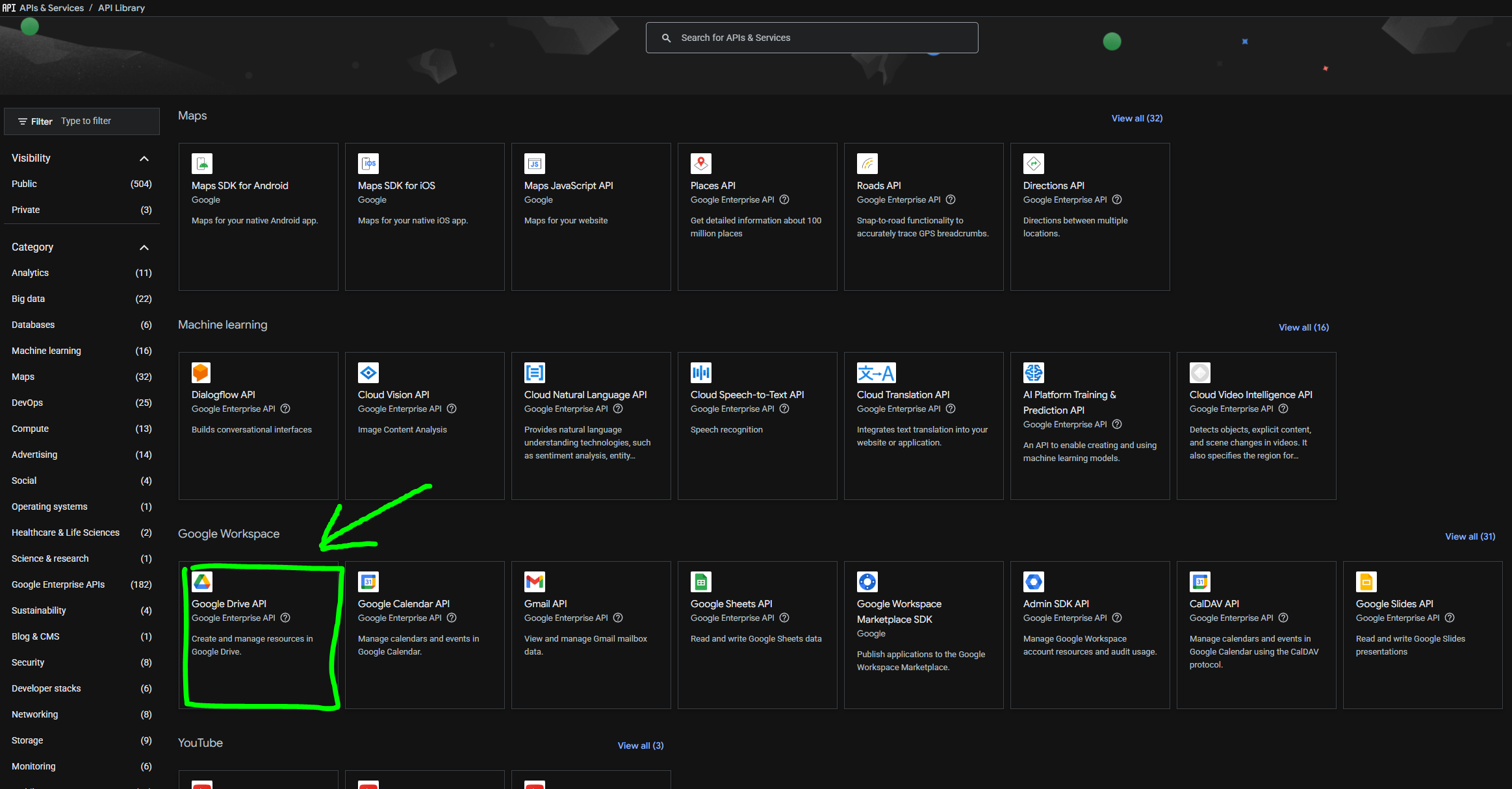
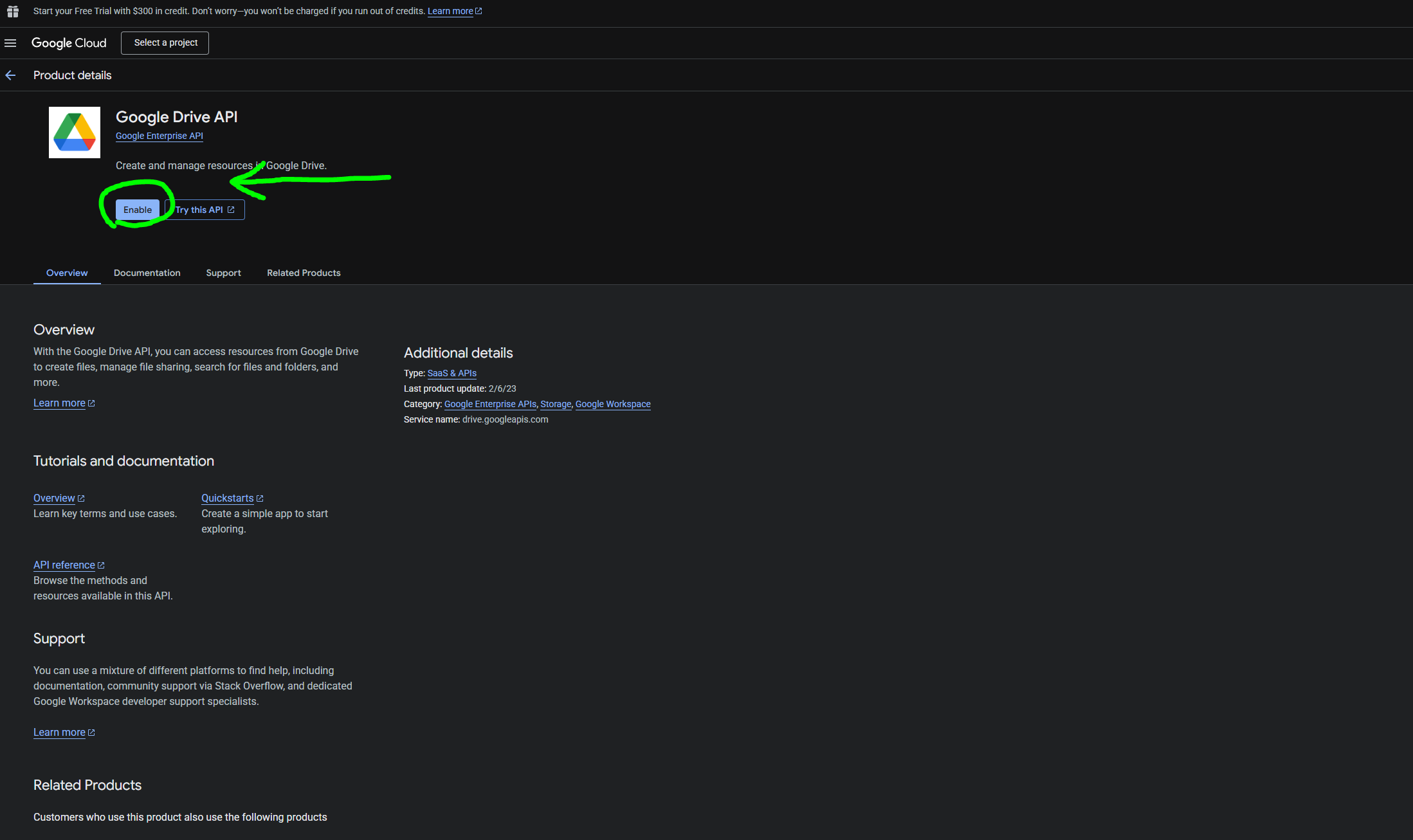
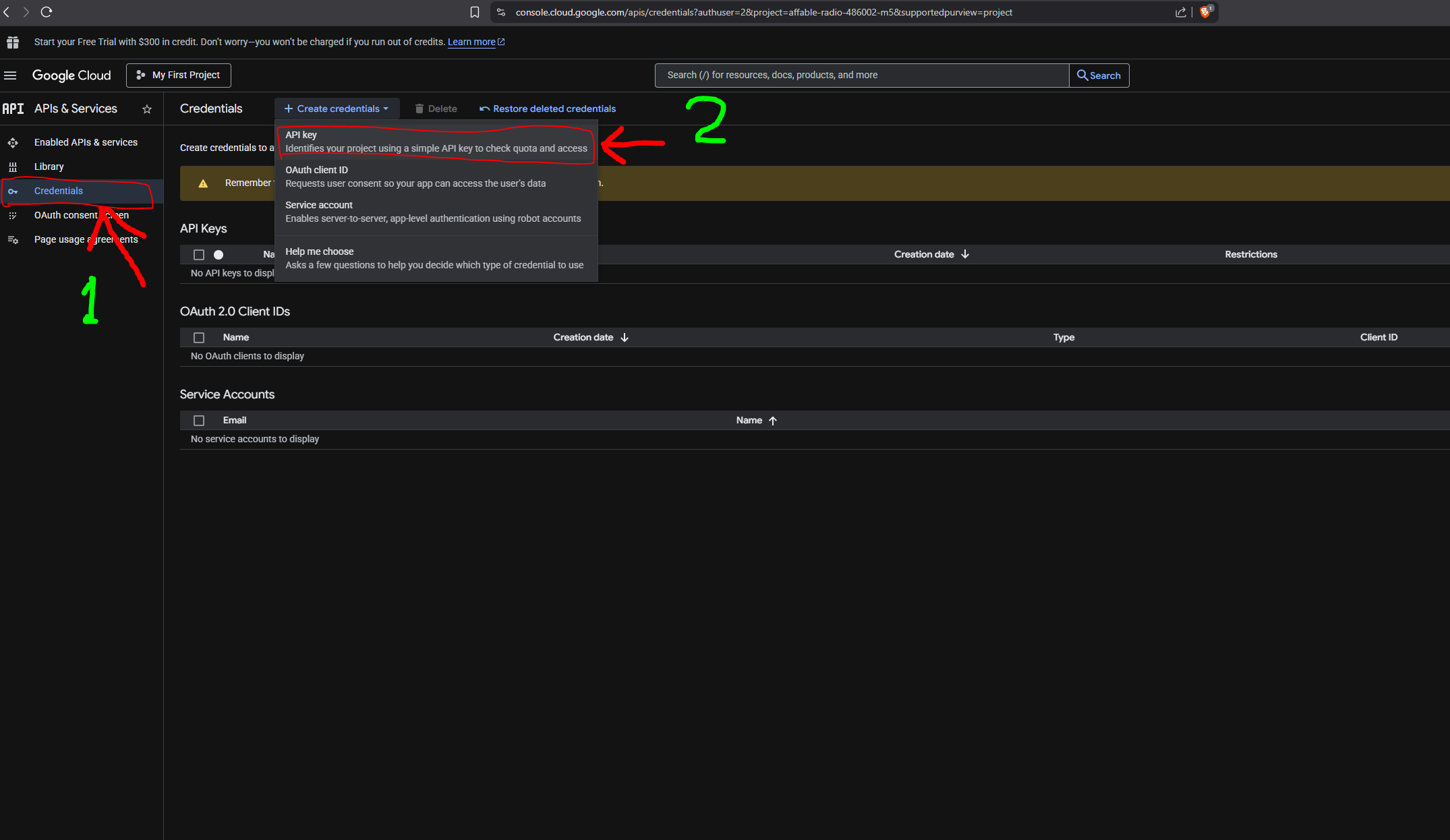
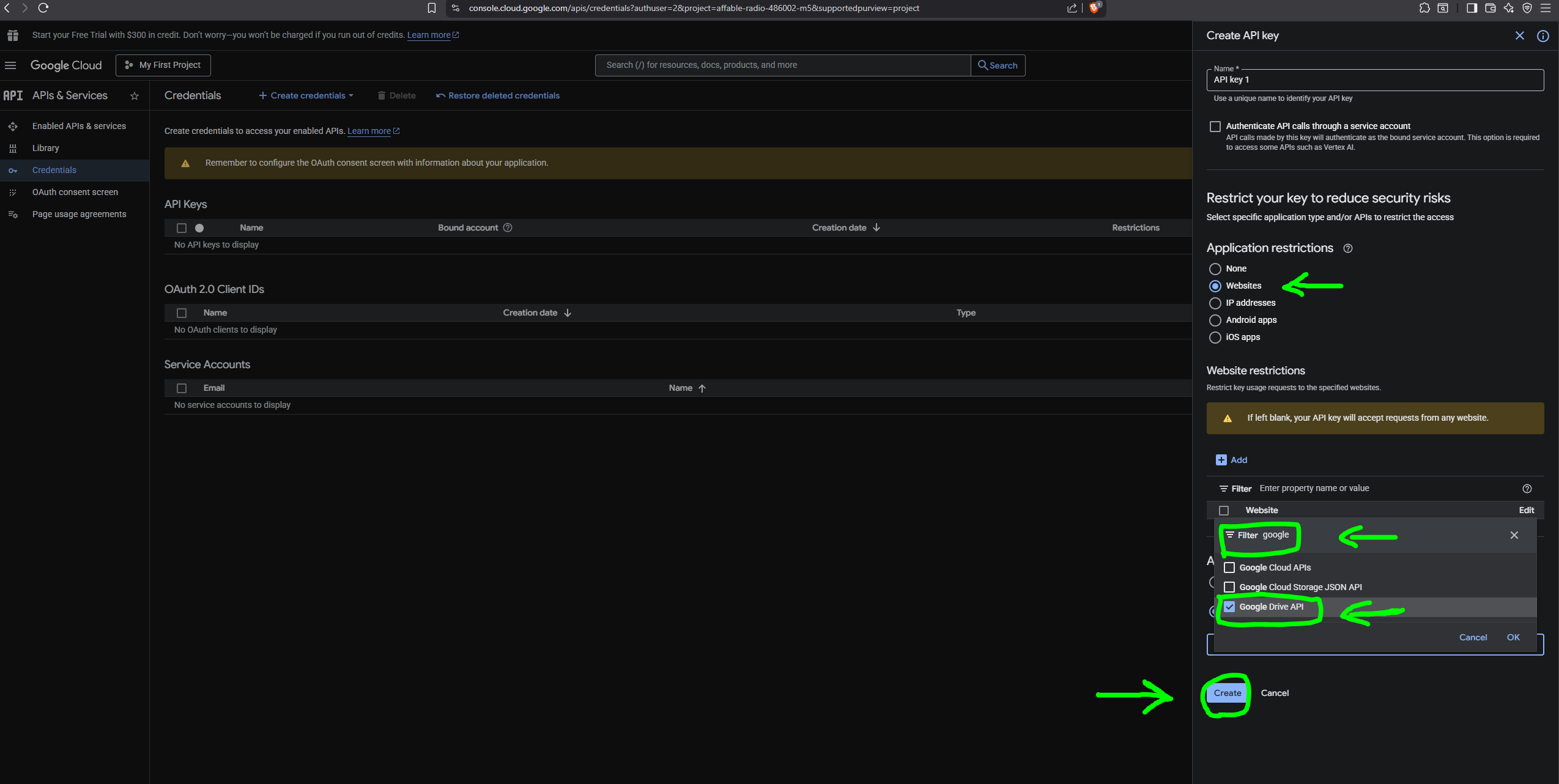
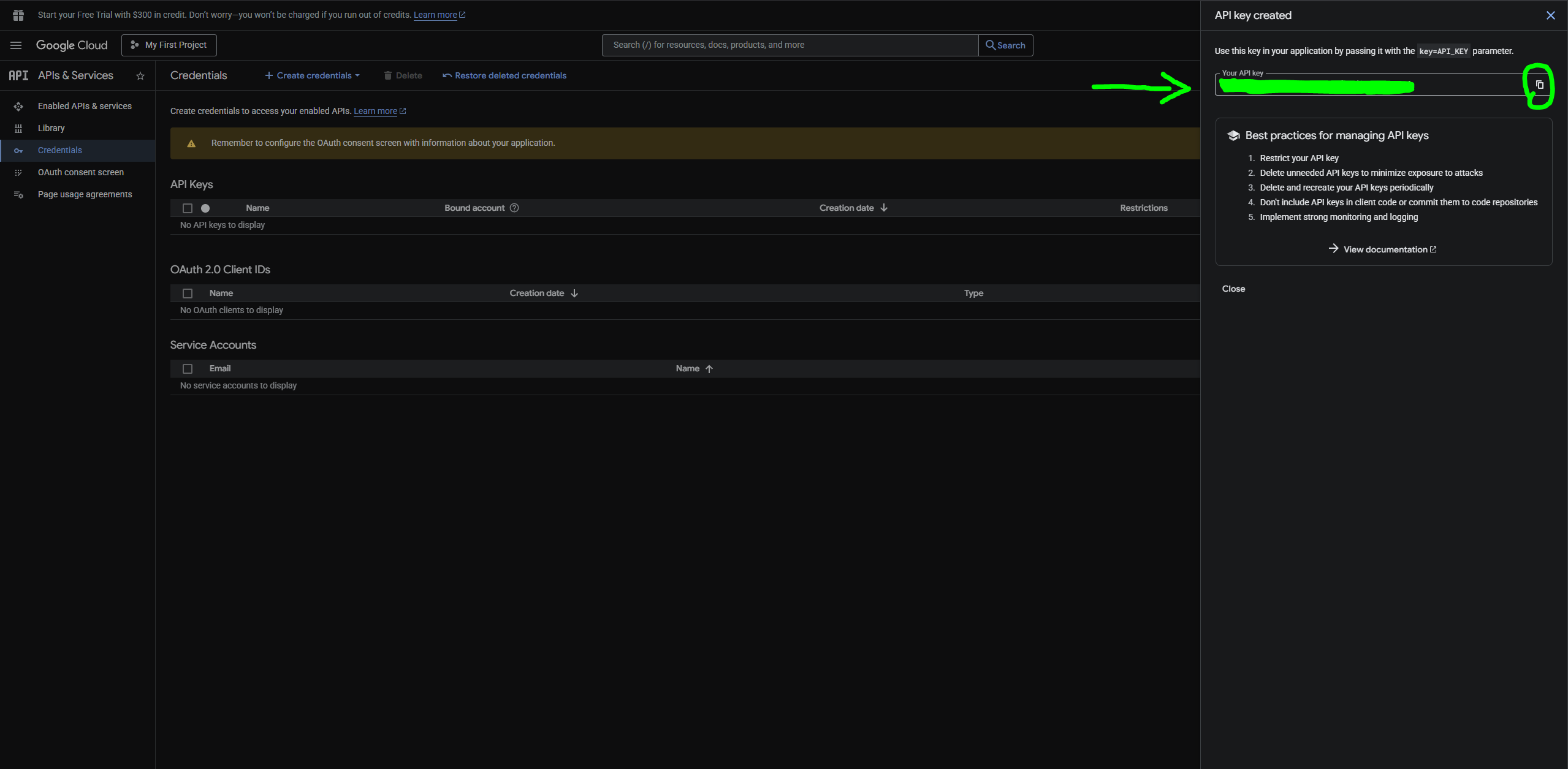
Step 2: Follow the steps in the images
Follow the images below in order to create an API key and enable Google Drive API.
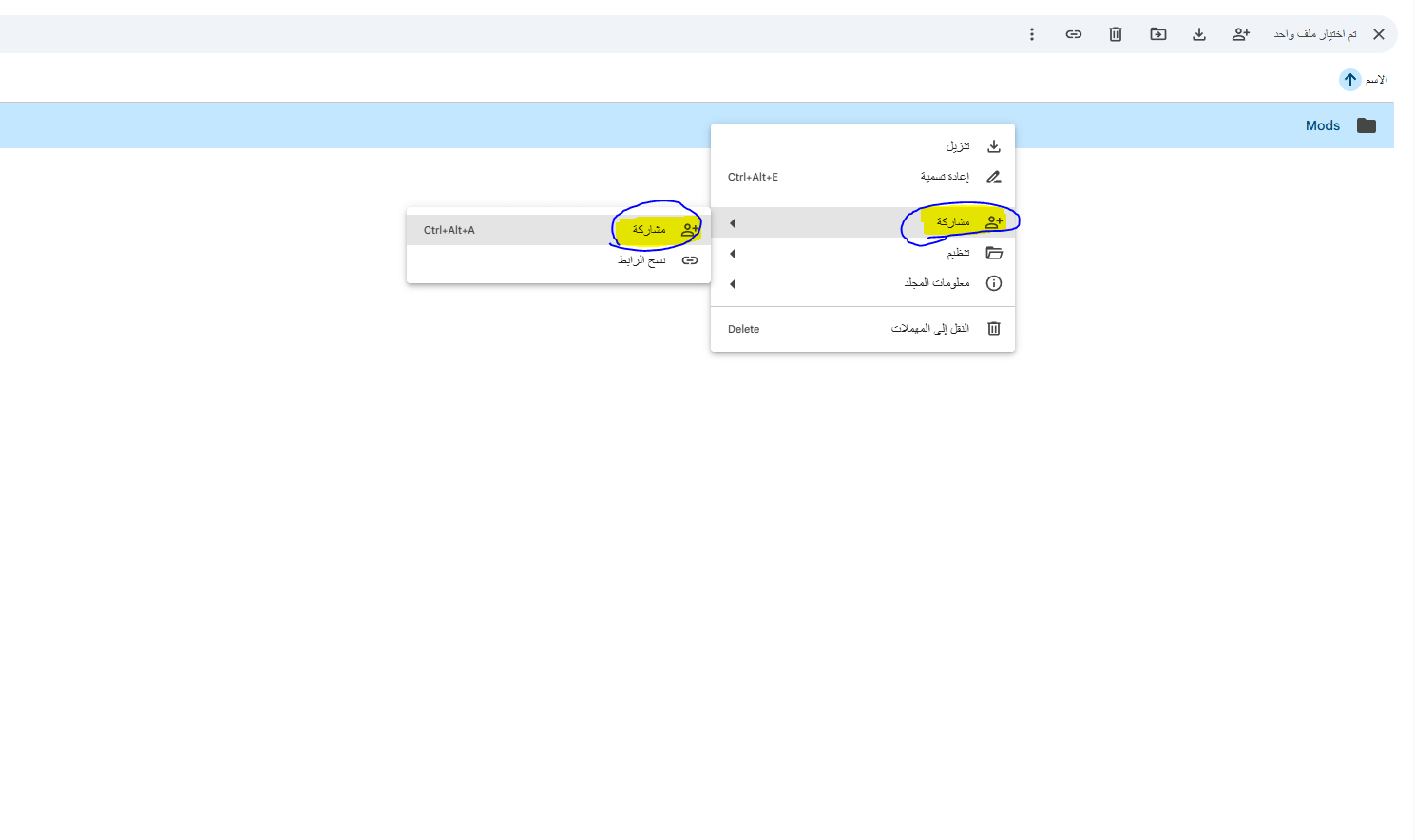
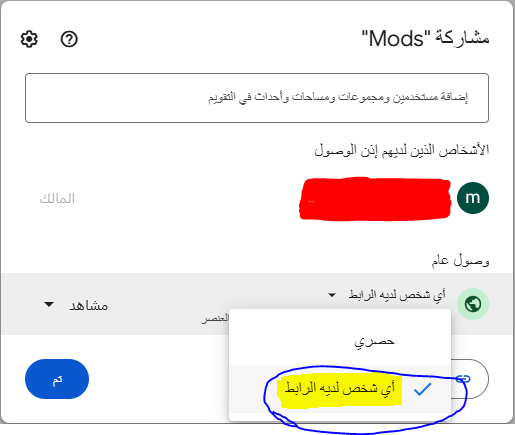
3. Make Google Drive Folder Public
For the app to download mods from your folder, the folder must be shared so that anyone with the link can view it.
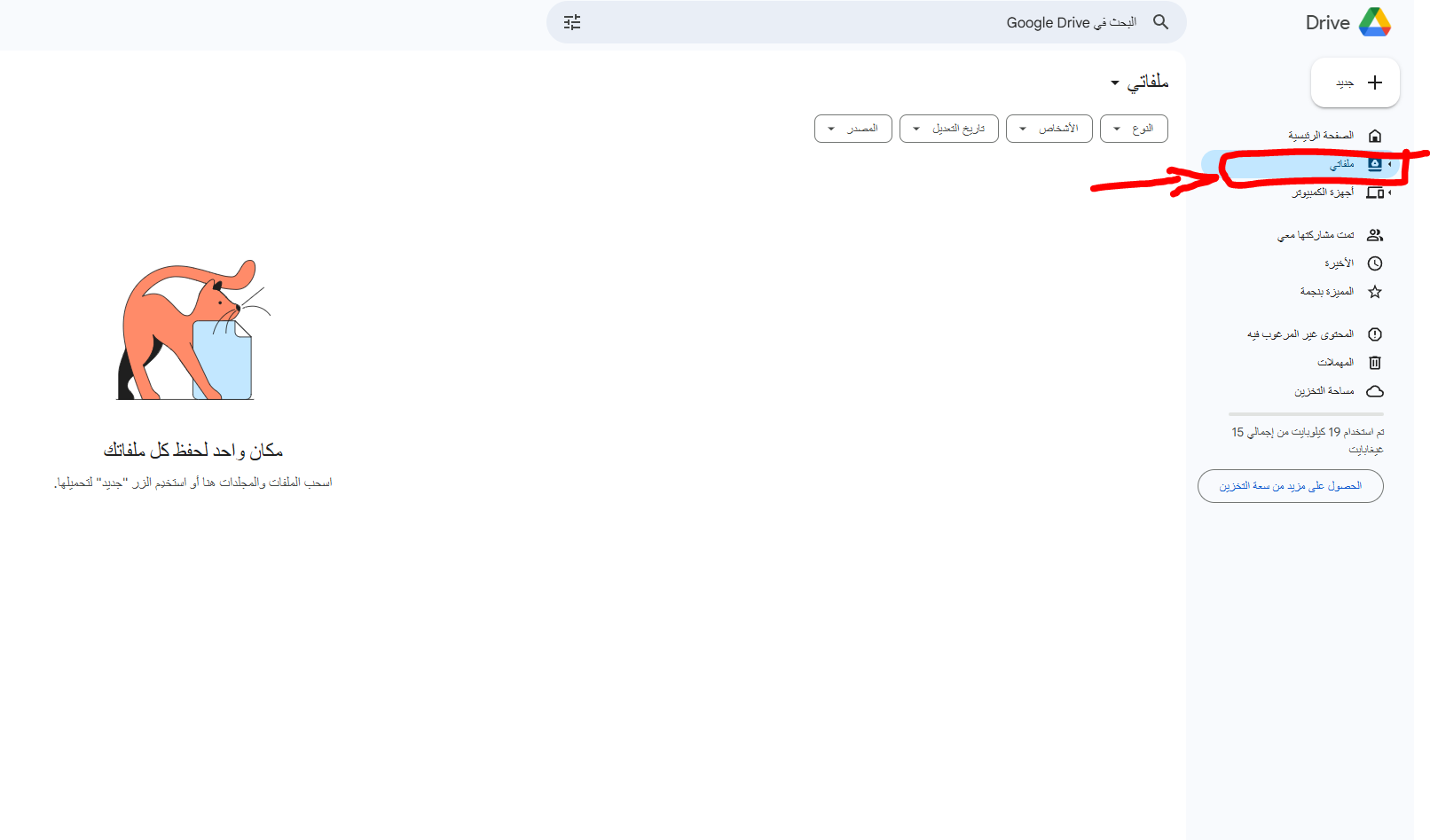
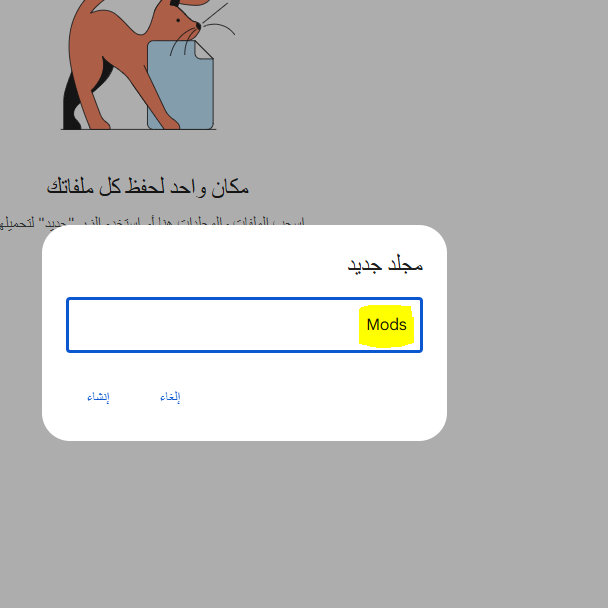
Steps
Create a folder with your mods inside and change the sharing settings to Anyone with the link.
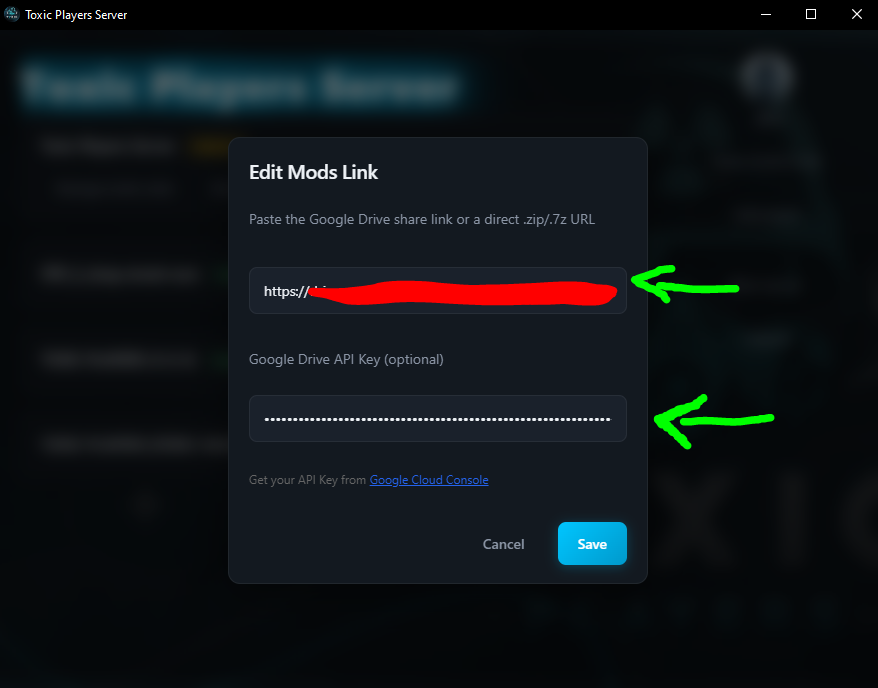
Final step: Paste link and key in the app
In the BeamMP Mods Sync Tool, when adding mods via Add Your Mods:
- First field: Google Drive folder link
- Second field: Google Drive API key